If your mic keeps cutting out on Discord for PS5, the fix is usually a setting, not a new headset. Work through these in order — most cutouts clear up without spending anything.
1. Set Discord’s input sensitivity manually
This is the most common cause. Open Discord on your phone or computer and go to Voice and Video settings. Turn off “Automatically determine input sensitivity” and set the slider yourself. If the threshold sits too high, your quieter words never register, and your voice cuts out mid-sentence.
2. Check the PS5’s own mic settings
On PS5, go to Settings, then Sound, then Microphone. Make sure the right headset is set as the input device, then test your level on the meter under Adjust Microphone Level. Also check the mute — on the headset itself and in the PS5 quick menu — because it is easy to hit by accident.
3. Toggle voice mode and noise suppression
In Discord’s Voice and Video settings, switch between Voice Activity and Push to Talk, then switch back. Turn off Krisp noise suppression too — it can clip your voice with some microphones. Note that Discord’s noise suppression is not available on PS5 itself, only in the Discord app on your phone or computer.
4. Fix the connection
Use a wired ethernet connection on PS5 instead of Wi-Fi, and close bandwidth-heavy apps like streaming or downloads while you chat. If your friends are on a distant server region, some latency is expected — check the server region too.
5. Update, rejoin, and retest
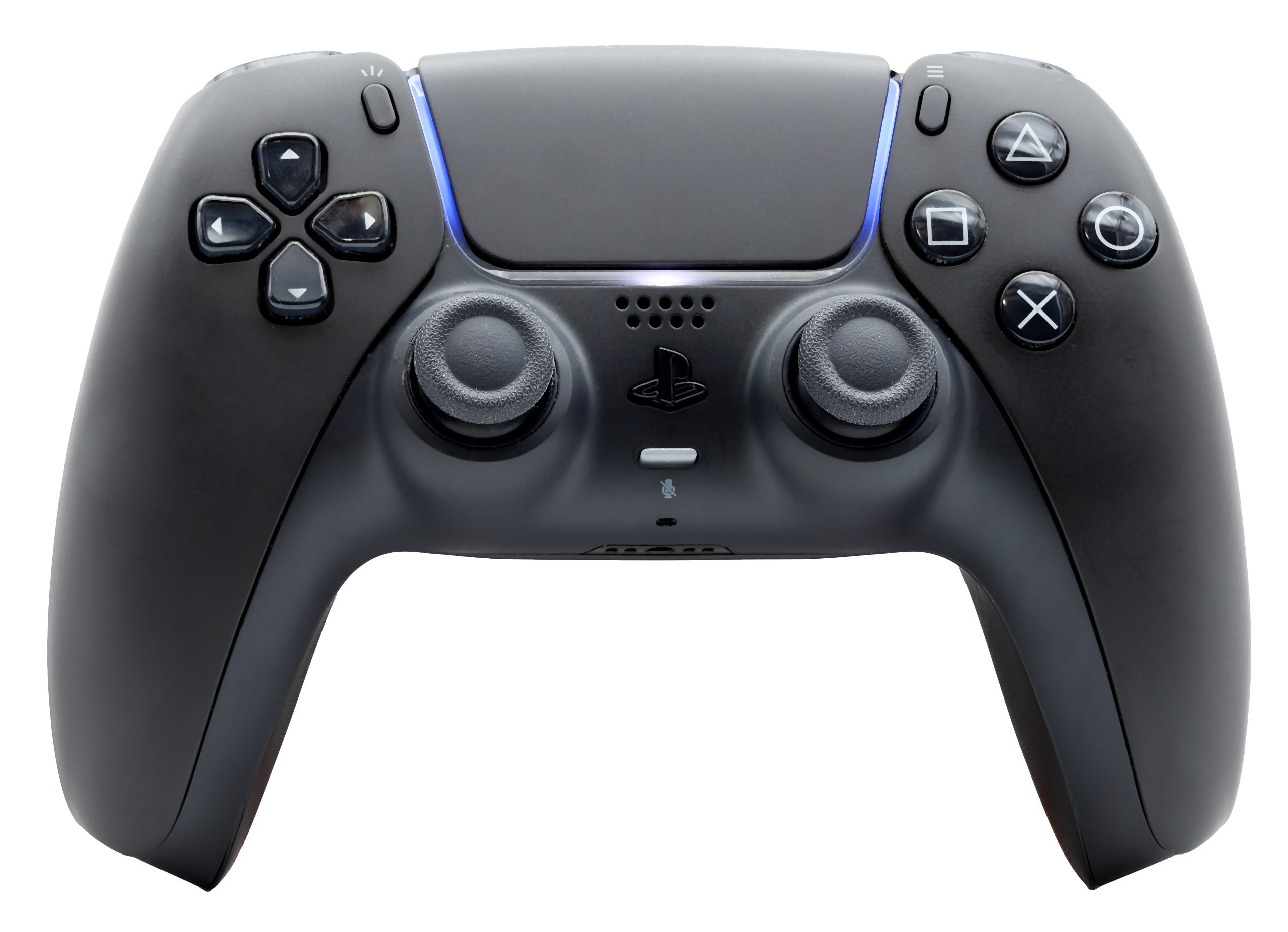
Update your controller firmware over USB, and try a different USB port or a 3.5mm connection if your headset supports it. Leave the voice channel and rejoin it, and check PlayStation Network status in case PSN itself is having issues. If nothing above helps, test another headset — a failing cable or mic is the last suspect.